Teal and Orange
Watch as an animation →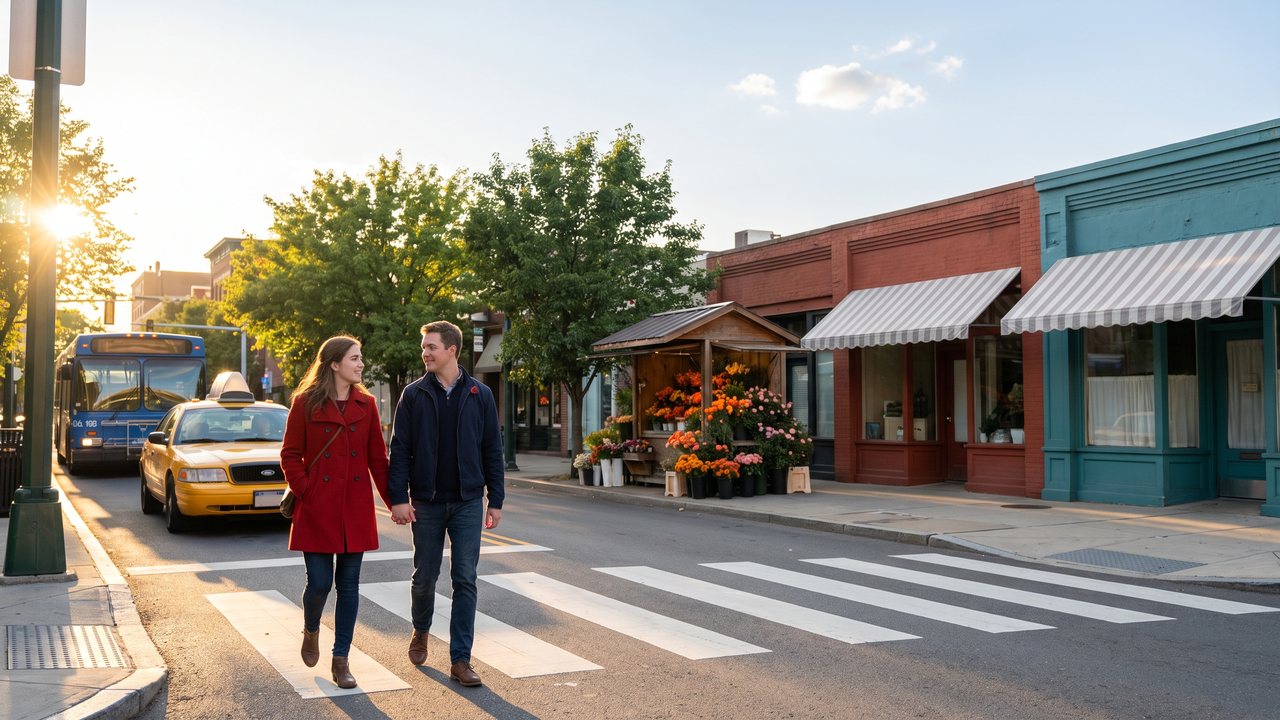
In plain words
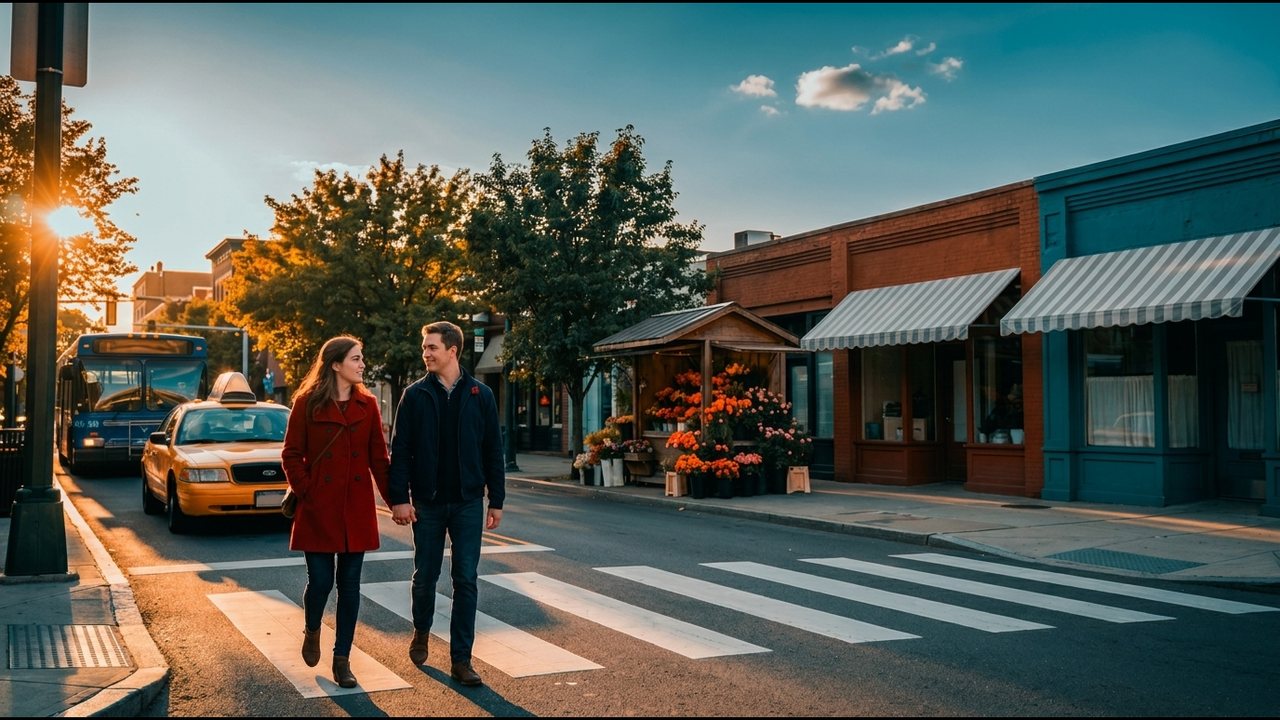
Push shadows and the background toward teal, and skin and bright areas toward orange, so the people stand out sharply from the background.
When to use it
Hollywood action blockbusters, car and sports ads, travel vlogs, and YouTube videos that need a cool, flashy feel.
Example videos
In AI video, like this
You can put "teal and orange color grade, teal shadows, warm orange skin tones" in the prompt. But the strength tends to vary from cut to cut, so it is more consistent to make plain-colored cuts and apply the grade all at once in editing. In DaVinci Resolve, nudge Lift (dark areas) a little toward teal and Gain (bright areas) a little toward orange. Check on the vectorscope's skin tone line that faces haven't turned green. In ffmpeg, add a little blue to the dark areas and a little red to the bright areas, like colorbalance=rs=-0.1:bs=0.1:rh=0.1:bh=-0.1. If you apply it strongly, every scene looks the same, so use it lightly.
One-click prompt
Push shadows toward teal and highlights toward orange for a blockbuster-style look: ffmpeg -i in.mp4 -vf "colorbalance=rs=-0.15:bs=0.15:rh=0.18:bh=-0.15,eq=contrast=1.1:saturation=1.1" -c:a copy out.mp4. If faces look sunburnt, lower rh to 0.1; grade the whole timeline with the same values so every shot matches.
Example films
Transformers: Revenge of the Fallen (2009) — The blogger Todd Miro cited it as an example of pushing teal and orange to the extreme · Iron Man 2 (2010) — The Guardian cited it as a film that used the combination of teal backgrounds and orange skin tones
See it in real films and ads
AI-made examples
Videcool — How to Make AI Videos - Color - Teal Orange Grade